Kiko: the CRM assistant
5 min read
Open in Oria CRM →What Kiko is
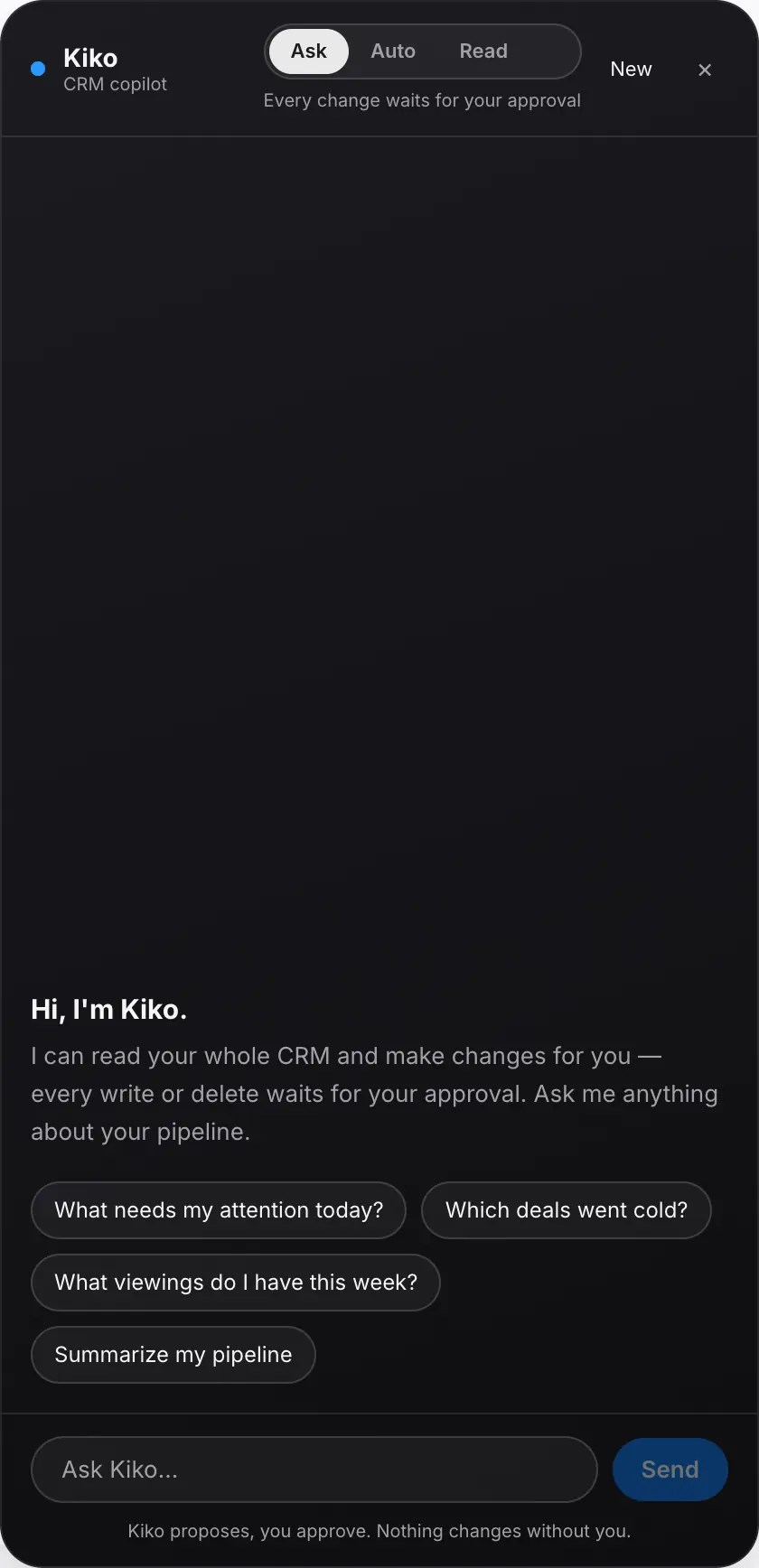
Kiko is the assistant in the bottom-right corner of every page in the workspace (on a phone, in the top bar). Tell it in plain language, in Romanian or English, and it searches your agency's data or makes changes for you. It sees only your organization.
Open it
Press the Kiko button (on a phone, in the top bar) or Cmd+K (Ctrl+K on Windows). Esc closes the panel. Every conversation is kept on your account: New starts a fresh one, and History lists them all so you can pick one up where you left off. You can rename or delete them there.
What you can ask
- To look things up: "what viewings do I have this week?", "show me properties without photos", "which deals have sat in Offer for over 10 days?", "how did the last post for listing X perform?".
- To act on the pipeline: "add a contact …", "move deal X to Viewing", "schedule a viewing Tuesday at 17:00", "set property Y to Reserved", "assign contact X to Dan".
- To act on a listing: "create a draft listing …", "drop the price to …", "assign agent …", "set the listing's link on the agency's website", "reorder the gallery and make photo X the cover", "write the description from the photos and add the English translation", "share the listing to Instagram/TikTok/Facebook".
- To run the auction desk and buyer briefs: "approve the pending bidders", "extend the clock", "end the auction", "record what client X wants: …", "find contacts who match this listing".
Answers are summaries, not raw tables.
Modes
Pick the mode at the top of the panel:
- Ask (default): Kiko proposes, you approve. Nothing changes without you.
- Auto: writes run instantly. You are still asked to approve deletes, social publishing, declining a bidder, ending an auction, scheduling a change, and writing listing text from the photos.
- Read: Kiko only looks; it cannot change anything.
Approval cards
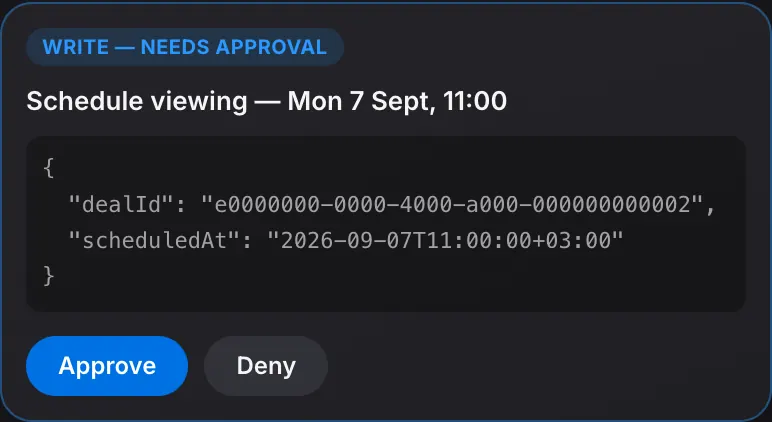
When Kiko wants to change something, a blue card (a change) or a red card (a deletion) appears with a one-sentence description. Press Approve or Deny. An approval is valid for 15 minutes and only for you; nothing runs in the browser.
Scheduled changes and reminders
Kiko can make a change later: "change the price in 48 hours", "set the property to Reserved on Friday at 10", "move the deal to Offer on Monday morning". You approve it now, and at the time chosen the change is made in your name. You can schedule a listing's price and details, the property status, the listing agent, a deal's stage and details, and the responsible agent.
If someone changes the same fields before then, Kiko overwrites nothing: it skips the change and tells you.
You can also ask for reminders: "remind me on Thursday at 9 to call Dan". At that time you get a notification. It takes you to the Scheduled tab, where Ask Kiko opens Kiko with the reminder ready to send.
Everything scheduled shows in the Scheduled tab on the Kiko page, and as a strip on the property or deal page. The whole agency sees it, and anyone can cancel it before it runs; whoever scheduled it is told.
The log
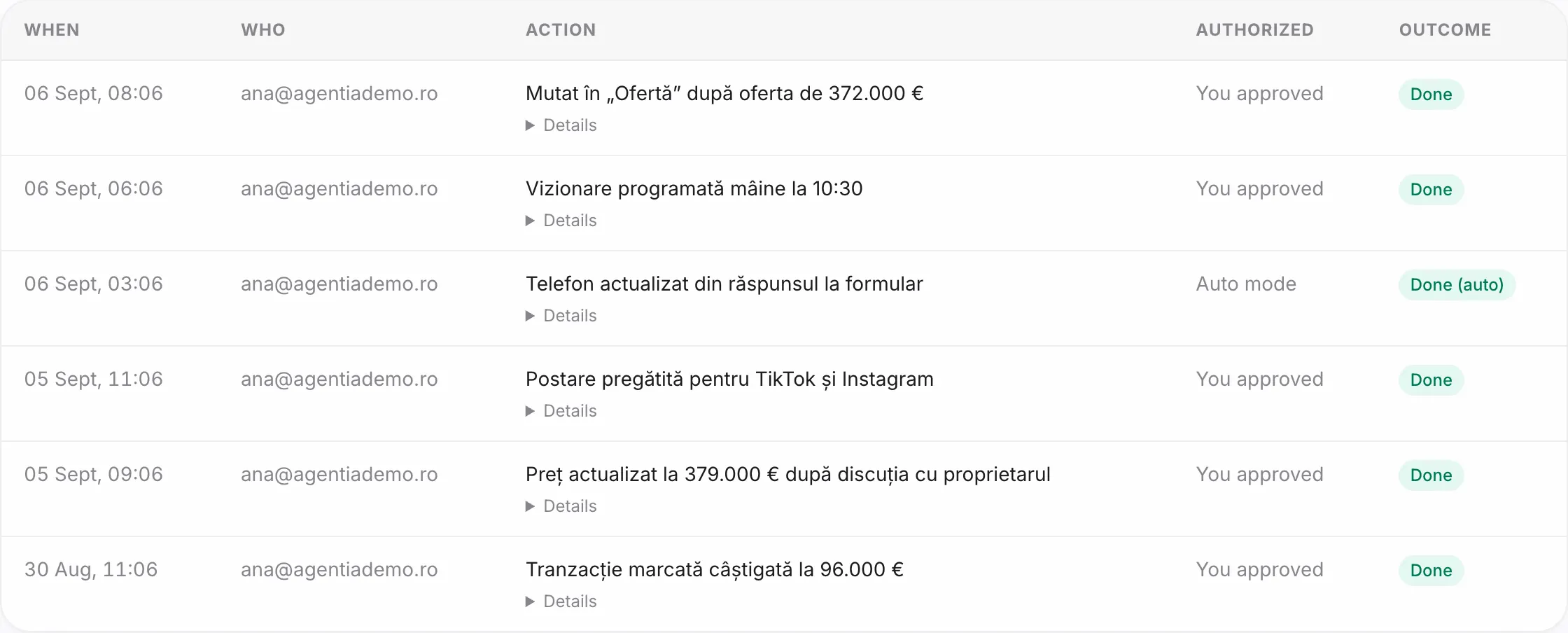
Kiko activity in the sidebar opens the Kiko page, with three tabs: Conversations, Activity and Scheduled. The Activity tab lists every change made, denied or interrupted: who acted, how it was authorized, the exact arguments and the outcome. It is your organization's log, not one user's.
Good to know
- Kiko has no access to other organizations.
- Each message you send Kiko uses one credit from the agency's plan; writing text from the photos and translating use extra credits. You see the balance under Billing.
- If the Kiko button does not appear, the assistant is not switched on; write to us.