Import and export: your agency's data
5 min read
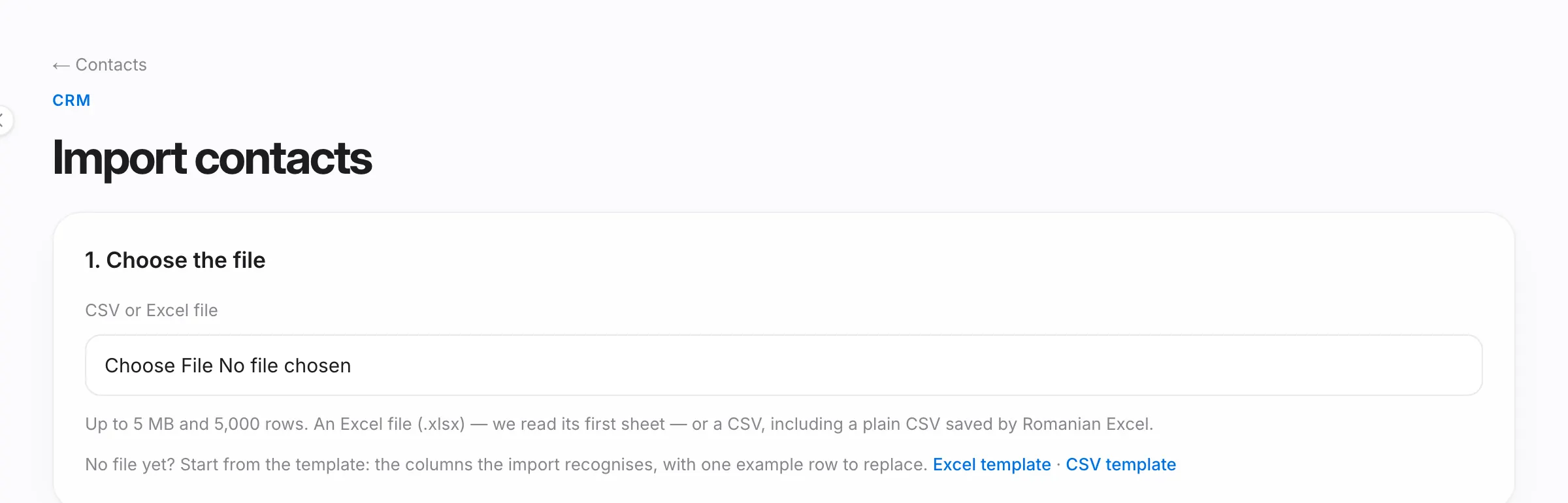
Contacts from Excel or CSV
The agency owner and managers can bring in every contact from an Excel (.xlsx) or CSV file, for example a spreadsheet or another CRM's export.
- In Contacts, press Import CSV / Excel.
- Choose the file: up to 5 MB and 5,000 rows; from an Excel file, the first sheet is read. No file yet? Start from the Excel template or the CSV template: they hold the columns the import recognises and one example row.
- Match the columns. Oria recognises most of them by their header; check them and change whatever is off. You need a column with the name and one with the phone or the e-mail.
- Press Check the file. Nothing is written yet: you see how many contacts are ready to import, how many are already in Oria, how many repeat within the file and how many have a problem. Download the list (CSV) gives you the rows that won't go in, each with its reason.
- Press the import button, which shows how many contacts go in. At the end, See the imported contacts opens the list filtered to contacts that came in by import.
What each column becomes:
- The name (or first and last name, from two columns), the phone and the e-mail.
- The contact type: buyer, renter, owner or other. An empty cell becomes Other.
- The status and the tags (separated by commas, semicolons or vertical bars).
- The responsible agent, by name. If the agent isn't found, the contact stays unassigned.
- The brief: buy or rent, property type, the city and zones wanted, budget, minimum surface and rooms, other requirements. Contacts with a brief enter listing matching and alerts; the check tells you how many there will be.
- The notes. Columns you don't import are added to the notes as "Header: value", so nothing is lost; a source column always lands there.
A contact with the same phone or e-mail as one already in Oria is not imported again. If the import stops, what was imported stays: import the same file again and only what is missing goes in.
Listings from Excel or CSV
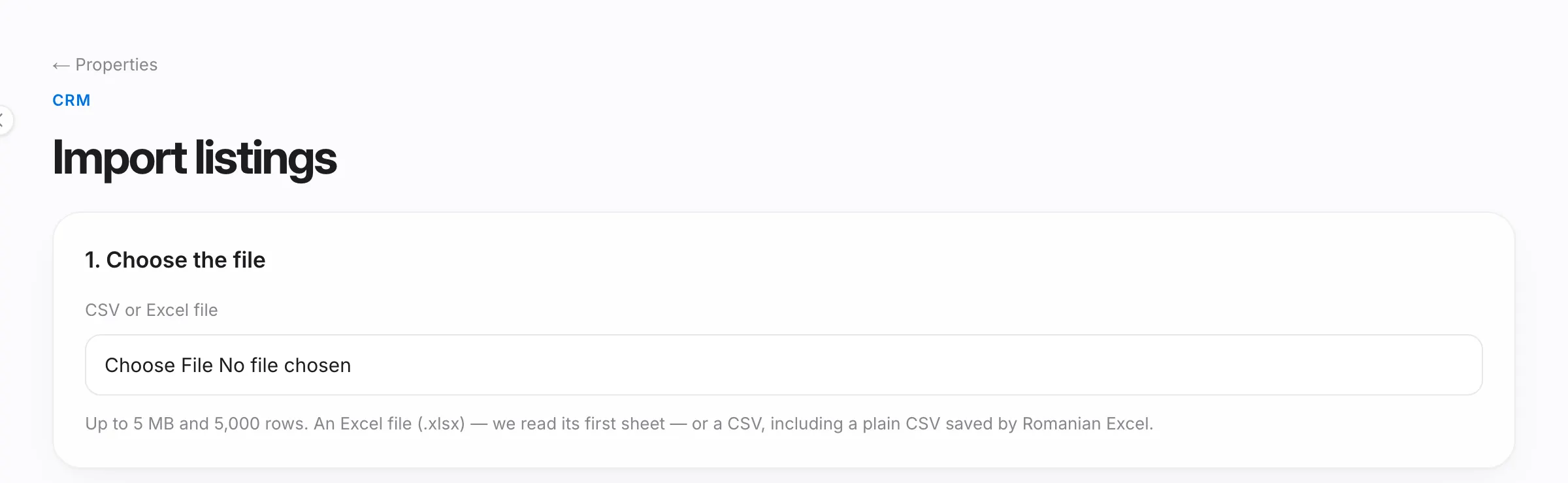
The owner and managers can bring in the portfolio too, from an Excel or CSV file, with the same limits.
- In Properties, press Import CSV / Excel.
- Choose the file and match the columns. The title, the city, sale or rent and the property type are required. You can also bring the address, price, surface, rooms, floor, description, listing status, internal notes, the agent and the owner (name and phone).
- Press Check the file, read the summary, then start the import.
Each listing is linked to its owner. If the owner's phone is already in your contacts, the listing links to that contact; otherwise a new owner contact is created. An owner without a name or a valid phone lands in the internal notes.
Repeats don't go in: a listing with the same city and address as one in Oria or as an earlier row of the file; with no address, one with the same city and title. Sold, rented or archived rows are not imported, and a status that isn't recognised becomes draft. Columns you don't import land in the internal notes, never in the public description.
Imported listings are not published anywhere and send no buyer alerts; add each one's photos afterwards. If the import stops, press Continue the import.
Export
- Contacts: Export CSV and Export Excel. The export downloads the list as you see it: the filters, the search, the order and Mine or Everyone. Each contact comes with its brief.
- Deals: Export CSV and Export Excel on the board. It downloads open, won and lost deals with their commission, following the sale / rent filter, the source and Mine or Everyone. The search does not apply to the export.
- Properties: Export CSV, with the list's filters, search and sorting.
Only the owner and managers get the contacts and deals exports; the properties export is there for the whole team. The buttons show on a computer, not on a phone. To work in Excel, pick Export Excel for contacts and deals: a CSV can open in a single column, depending on Excel's settings.

One person's data (GDPR)
When someone asks what data the agency holds on them, open the contact and go to Personal data (GDPR):
- Download PDF: a document that is easy to read, in the language you use Oria in.
- Download JSON: the same data in a format another program can read, for a portability request.
The export holds everything the agency has on the person: contact details, brief, deals, viewings, activities, enquiries received, contracts, auction registrations, the Kiko conversations that name them and the viewing sheets. Only the owner and managers see the buttons, and Oria records every export: who made it and when. A contact whose data has been erased has no export.
Good to know
- A contacts export can be imported back: the import recognises its columns, status and tags included.
- A plain "City" column is read as the city the contact lives in and lands in the notes. The wanted city is only taken from a column that says so, for example "City wanted".
- Old Excel files (.xls) can't be read; save them as .xlsx or CSV.
- The template exists only for the contacts import.