Getting started with Oria CRM
4 min read
Open in Oria CRM →What this workspace is
Oria CRM is where your agency keeps contacts, deals, properties and auctions in one place. Everything you see belongs to your organization: your colleagues see the same data, other agencies never do.
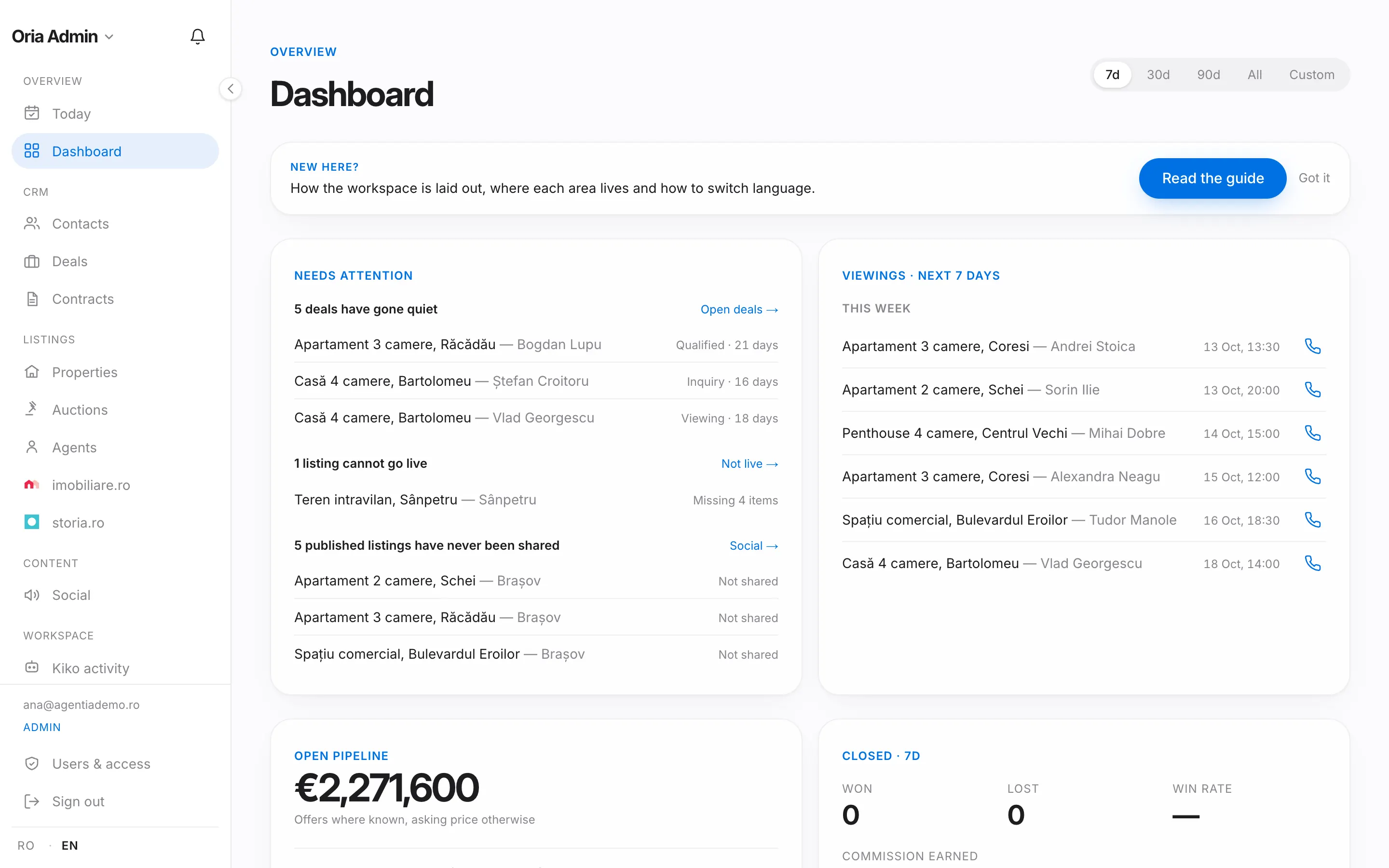
The sidebar in short
- Overview: Today, your day (follow-ups due, calls to try again, today's viewings and deals gone quiet), and Dashboard, what needs attention now, this week's viewings and the numbers for the selected period.
- CRM: Contacts, Deals and Contracts, the people you work with, every opportunity from inquiry to close, and contracts.
- Listings: Properties, Auctions, Agents, imobiliare.ro and storia.ro, your portfolio, open-house auctions, your team's profiles and your portal accounts.
- Content: Social, publishing properties to TikTok, Instagram and Facebook.
- Workspace: Kiko activity, Tutorials, Team and Billing, what the Kiko assistant did, the guides you are reading now, your colleagues and their roles, and your plan and credits.
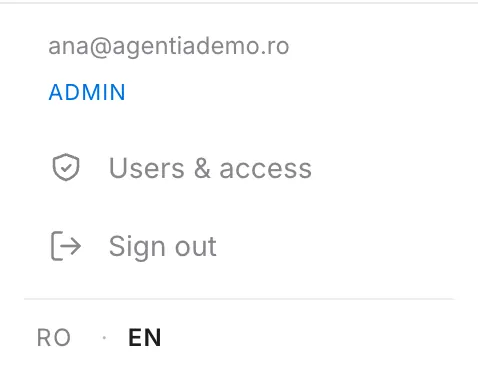
At the top, next to the workspace name, the Notifications bell shows new leads and what was assigned to you. At the bottom of the sidebar you find Users & access, Sign out and the language switch.

Switch the language
Press RO · EN at the bottom of the sidebar. The choice is saved on your account, not in the browser: it follows you to any device and does not change when a client browses the public site in English.
Kiko, the assistant
The Kiko button in the bottom-right corner (on a phone, in the top bar) opens Kiko. Tell it in plain language what you want to find or change and it proposes; in the default mode nothing changes without your approval. Each message to Kiko uses one credit from the agency's plan. See the Kiko guide for details.
The "New here?" hints
Each main page shows a short card pointing to the matching guide. Press Got it to dismiss it; you can bring the hints back any time with Show page hints again on the Tutorials page.

On a phone
On a phone, the bar at the bottom takes you to Today, Contacts, Deals and Properties, and the + button in the middle adds a contact, a deal or a property. The menu button top-left opens the rest of the sidebar. Lists show one card per row; tap a card to open it.